How to use your Inventory
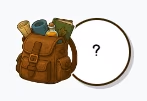
Your inventory is where every collectible you are own is listed: gems, food, seeds, and other oddities. You open it from the inventory button on the game screen (the bag icon, with a small preview of whatever you currently have selected - or a question mark if nothing is selected).
What it shows
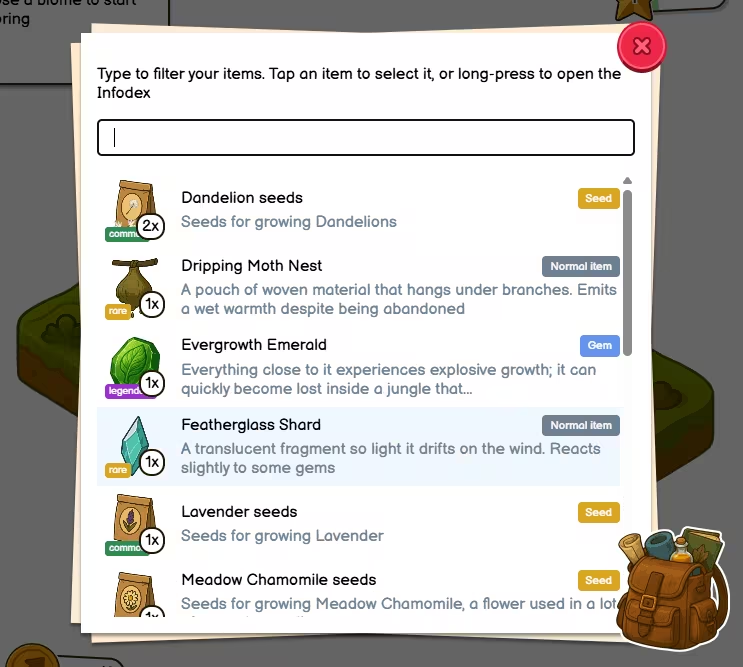
Some short instructions at the top will remind you of the crucial interactions: you can type to narrow the list, tap an item to select it, or long-press an item to open its entry in the Infodex without selecting it.
Below that is a search bar. When you type, the list updates to show only items whose names match, or partially match, what you typed. It’s not case sensitive, so you don’t need to match capital letters.
The main area is a scrollable list of everything you own that appears in the inventory. If you have nothing yet, you will see a message inviting you to go out and explore. If your search matches nothing, you will see a “no items found” style message.
What each entry tells you

Each line is one individual type of item you own, and gives you:
- What it looks like
- Its rarity (common, uncommon, rare, etc)
- How many you own (some games will let you use up any extra items)
- The item’s name
- A coloured tag for the type (gem, creature, food, and so on)
- A short description (it may be trimmed on small screens so the list stays readable)
If you have an item selected, you’ll see it highlighted more strongly that others. This is the item that World Explorer will treat as “in hand” when you explore a tile.
Selecting an item (single tap)
Tap an item once to select it. The inventory will close automatically.
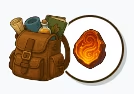
That item becomes your active selection. When you explore a map tile in World Explorer, the game uses this selection where it matters - for example, many creatures only appear if you have the correct gem selected before you explore, to attract them. If you pick the wrong item or have nothing selected at all, the creature won’t show itself.
There’s no need to clear a selection. If your selection doesn’t need to be used, it won’t be. The next time you play the game, nothing will be selected.
Opening the Infodex
Sometimes you only want to read about an item (where to find it, any restrictions it might have) without making it your active selection. There are two ways to do this:
- Press and hold (long-press) the item - this works better on a phone or tablet,
- Double-click the item - this works better on a computer
The inventory closes and the Infodex opens on that item’s page.
Infodex: back versus close
After you opened the Infodex from the inventory (long-press or double-click):
- The back button returns you to the inventory. Any search text remains unchanged, so you can keep browsing where you left off.
- The close button only closes the Infodex. It won’t** reopen the inventory
If you opened the Infodex some other way, you might not see a back button. This is normal - it’ll only show when it’s necessary.
What you won’t see
Research notes you pick up in World Explorer don’t appear as separate items here. They simply unlock information in your Infodex when you find them.
Tips
- Know your creatures: If a creature needs a particular gem, select it before you explore the tile - you don’t want to miss out on a legendary creature because you forgot.
- Speed filter: You generally only need to type a few letters of a name to filter what you’re looking for.
- When you open the inventory with an item selected, the list will scroll to it immediately