How to play: World Explorer
This guide explains the basic elements of gameplay and everything you need to know to start exploring.
Getting Started
First Time Playing
When you play for the first time, Professor Nell will run you through how to play the game, including everything in this guide. Listen to what she says! She’s there to help you.
The Overworld
When you launch the game, you will first see the Overworld - a map showing the different biomes you can explore. Each day, you start by choosing which biome to visit and explore, to collect items, discover creatures, and find gems.
Biomes
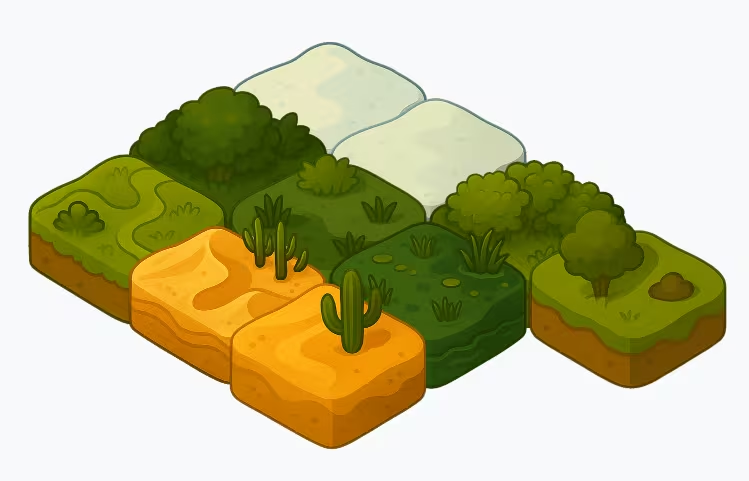
At the moment, five distinct biomes are available, each with its own terrain, creatures, and items:
- Desert - Sandy dunes, oases, and scrubland
- Forest - Dense woodland with trees, underbrush, and canopy
- Grassland - Open meadows, grassy plains, and rolling hills
- Swamp - Bogs, reeds, mudflats, and wetland vegetation
- Tundra - Frozen landscapes, ice pools, snow, and permafrost
Items and creatures are unique to their biome. When you select a biome from the Overworld, you will enter that biome’s map and can begin exploring.
Exploring Tiles
Exploration is the core of the game. Each map is made up of tiles representing different terrain types (e.g. grass, sand, water, trees).
How to Explore
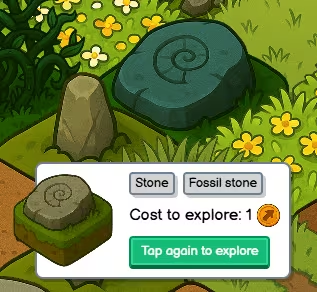
- Tap once on an unexplored tile to select it. You will see information about the tile, including the cost to explore.
- Tap again on the same tile to actually explore it and discover what it contains.
Exploring costs actions (see below). The first explore in a biome will always cost only 1 action. After that, the further a tile is from your last explored position, the higher the cost. Plan your route carefully to make the most of your actions.
Panning the Map
You can drag or swipe to pan the camera and move around the map. Tapping elsewhere (or dragging) will deselect the current tile.
Returning to the Overworld
When you are done exploring a biome, tap the back button to return to the Overworld. From there, you can choose another biome to explore (if you have actions remaining) or come back later.
Actions
You have a limited number of explore actions each day. Each time you explore a tile, the action cost depends on the distance you travelled from your previous exploration.
- Your actions refresh at midnight each day.
- Exploring tiles closer to your last position costs fewer actions.
- The best explorers plan their routes to minimise wasted movement.
When you run out of actions, you will need to wait until the next day to explore again.
Professor Nell’s collections
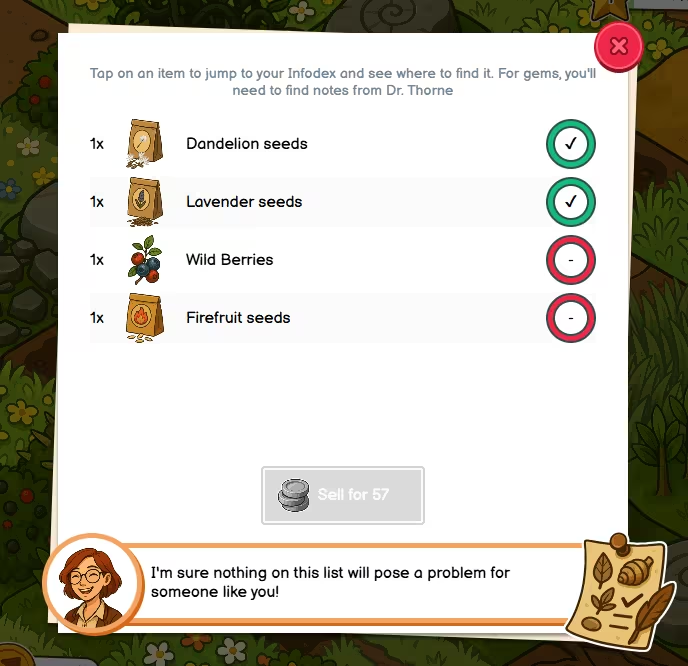
Professor Nell is always on the lookout for someone to help her collect items. She’ll give you collection lists - lists of items she needs. Your goal is to find all the items on the current list.
- Tap on the list icon to open your current list
- Tap on an item in the list to open your Infodex and see where that item can be found, as well as any restrictions that apply to it.
- When you have collected every item on the list, Professor Nell will take them off your hands and give you a reward.
- Your Infodex keeps the information about items you have discovered, even after you sell them.
The Infodex
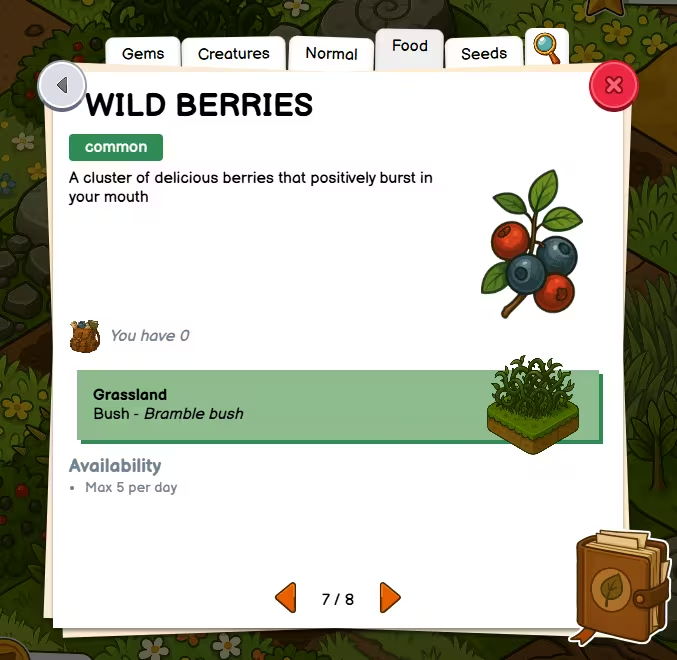
The Infodex is your encyclopaedia of discovered items. It fills up as you explore more of the world. It shows:
- Where to find items - Which biome and which tile type the item appears on.
- Availability restrictions - Some items are only available on certain days of the week, certain dates, or during specific hours. The Infodex will tell you when an item can be found.
When Professor Nell gives you a new collection list, she’ll update your Infodex with the item info.
Use the Infodex to plan your explorations. Tap an item in your current collection list to jump directly to its Infodex entry and see where to find it.
Rarity
Items have different rarity levels. Rarer items are harder to find and may have stricter availability restrictions.
Item limits
All items have daily limits - you can only collect a certain number per day. If you have reached the limit for an item, you will see a message explaining this. Try again the next day or focus on other items.
Inventory and Selecting Items
Your Inventory holds all the items you have collected. You can:
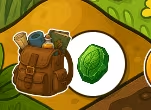
- Tap an item to select it. Selected items may be used when you explore (see gems and creatures below)
- Long-press an item to open its Infodex entry.
- Type to filter and search your items.
Gems and Creatures
Some tiles contain creatures, but creatures won’t appear unless you have the correct gem selected in your inventory. Each creature is attracted by a specific gem - you need to select that gem before exploring the tile.
To find out which gem a creature needs, look for notes from Dr Thorne (see Camps, below).
Camps
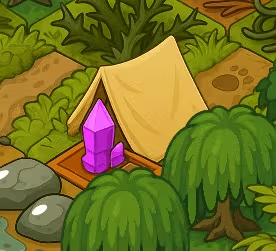
Dr Thorne is constantly travelling the world. Every day, he sets up camps in a different biome. Camps look like small tents on the map.
When you explore a camp tile, you may find notes - documents that reveal:
- Information on certain gems in that biome.
- Which gem is needed to attract a specific creature and where to find those creatures.
Notes unlock information in your Infodex. For creatures and gems, you often need to find Dr Thorne’s notes before you can successfully collect them.
Tips for New Explorers
- Check the collection list - Focus on items Professor Nell needs to earn rewards.
- Plan your route - Exploring tiles in a logical path costs fewer actions than jumping around the map.
- Use the Infodex - It tells you exactly which biome and tile type to visit.
- Visit camps - Notes from Dr Thorne are essential for finding creatures and gems. It’s worth hunting for Dr Thorne before you do anything else.
- Select the right gem - Before exploring a creature tile, make sure you have the correct gem selected in your inventory.
- Watch the restrictions - Some items only appear on certain days or at certain times.
Troubleshooting
- “You need X actions to explore that far” - The tile is too far from your last explored position. Try exploring tiles closer to you first.
- I explored a creature tile, but no creature appeared - You may need to select the correct gem. Check your Infodex and any notes you have found.
- I explored a tile, but didn’t find an item - Check the Infodex for availability restrictions. The item might only be available on specific days or hours.
- Out of actions - Your actions refresh at midnight. Come back tomorrow to explore again.