How to use your Infodex
Think of the Infodex as your field notebook, your encyclopedia: everything you have figured out about creatures, gems, seeds, and other items lives here. It is less about what is in your pockets right now and more about what you know.
You can open it from the Infodex button on the game bar (the little book), or you can open it based on specific contexts (Professor Nell’s collections, or when you find an item). You can also peek at an entry from your inventory by long-pressing or double-clicking an item.
The tabs across the top

Along the top you get a row of tabs - one for each category of items (gems, creatures, food, seeds, and so on). This is a quick way of filtering through the hundreds of items available in GemWorld.
Entries in each tab are in alphabetical order, so once you know a name you can usually hunt it down quickly.
There is also a magnifying glass tab. That one is special: it opens search mode, which rummages through everything you have discovered so far, all categories at once. More on that below.
Flipping through pages (the arrows)
At the bottom you will see left and right arrows. This is your position in the current category’s list, as well as how many items belong in that category.
Tap the arrows to move one entry at a time. If you go past the end, it wraps around to the other side - so you can keep tapping in one direction and you will eventually come full circle. Useful when you are idly browsing.
Searching the Infodex
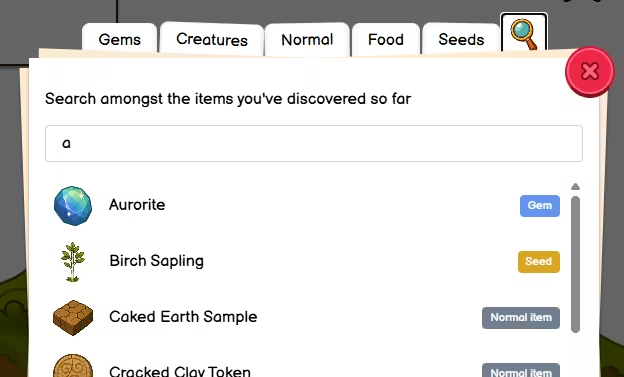
Tap the search tab and you get a search box plus a list of results, which will be blank until you start typing something.
- Type to narrow the list. Matching is not fussy about capitals, and you generally only need a few letters to get what you need
- You only see things you have already discovered - the game will not spoil entries you have never unlocked.
- Tap a result and you jump straight to that item’s full page results.
What you see on an entry (when you have found it)
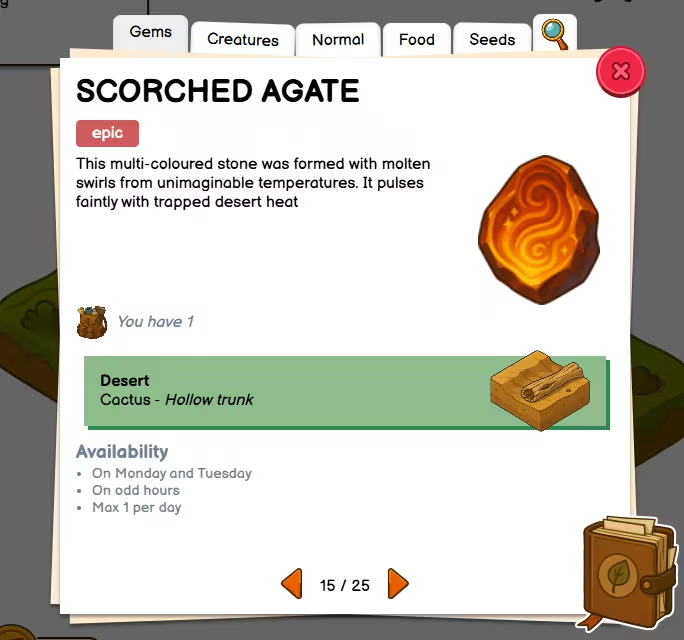
Once an entry is filled in for you (as in, you’ve discovered it), a typical page shows:
- Name and rarity (how special it is).
- A picture of the item and its description.
- How many you currently have in your inventory (with a little bag icon). If the count is zero, that is fine - you still keep your knowledge of items; you’re just not carrying one at the moment.
The green panel that is all about where to look on the map in World Explorer:
- Which biome it turns up in.
- The kind of terrain and the specific tile.
Next comes Availability, or any restrictions that the item has before you can get it. Since gems appeared in GemWorld, a lot of what people take for granted has gone out the window. Items are only available on certain days, dates, times of day, or other rules. In short, the rarer the item, the more restrictions is has. It also mentions daily limits so you know you are not meant to farm the same thing forever in one sitting. GemWorld needs to keep its balance.
Some items, such as creatures, will say that you need a specific item in your inventory and selected as one of the restrictions. This means that you need to own at least one of the item and have it selected in your Inventory before exploring…
Mystery entries (not discovered yet)
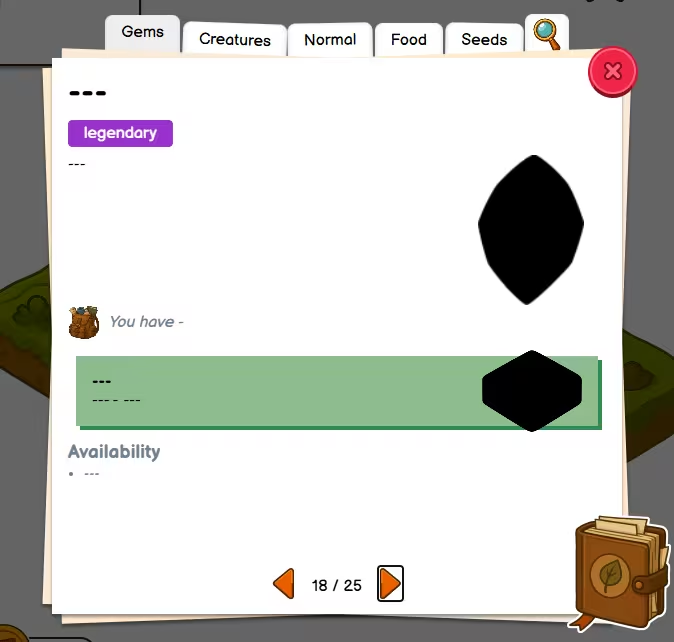
Items you have never discovered stay blanked out: you’ll see silhouettes instead of proper art, and dashes instead of the juicy text. That is normal - the Infodex is teasing you. Go explore, complete lists, find notes, and the pages will fill themselves in.
Professor Nell can help you here with her collections. She’ll normally update your Infodex with info on the items she wants you to find for her.
When it comes to creatures and gems though, you’ll need to find Dr Thorne’s camps.
Closing the Infodex

If you came from the Inventory (long-press / double-click) or from a collection list, you might also see a back arrow. This will close the Infodex and return you to your previous screen. X just closes the Infodex and does not reopen your bag.
Quick tips
- Collection list + Infodex - Tapping an item on Professor Nell’s list in World Explorer will jump you to the right Infodex page so you know exactly what to hunt.
- Plan a route - Biome + tile type + availability = fewer wasted explores.
- Search when you forget the name - Type a fragment; you only see things you already know about, so the list stays manageable.
- Look for Dr Thorne’s camps - Fill out your Infodex with hard-to-find knowledge.